NABU-86 Windows 3.1
Group: Headless Menus • Author: DJ Sures
Created 2026-11-14 • Updated 2026-11-14Windows 3.1 in Standard Mode on your NABU, on the NABU-86 80286 core. Program Manager with every NABU channel category as a group, with the programs' own icons. Notepad, Clock, Control Panel, a joystick mouse.
You can find NABU-86 Windows 3.1 in the Headless Menus category. To run this, look in the Internet Adapter or Headless menu on the NABU/MAME and navigate to the Headless Menus channel category and select NABU-86 Windows 3.1.
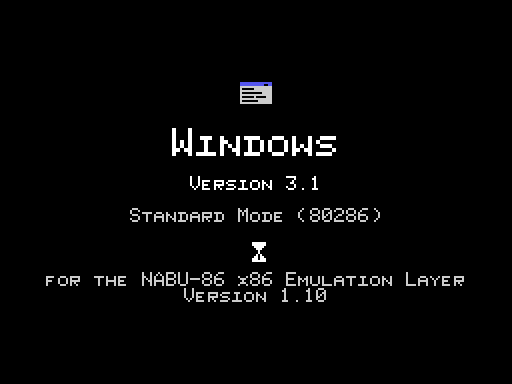
Windows 3.1 in Standard Mode on an unmodified NABU Personal Computer, running on the NABU-86 x86 Emulation Layer 1.10.
It boots like any PC. The NABU-86 loader probes the Z80's register file, the BIOS counts its 640K, MS-DOS 6.22 starts, AUTOEXEC.BAT types WIN, and you're at Program Manager. From NABU-86's own C:\> prompt, typing WIN gets you here too.
How Windows runs on a Z80
NABU-86 1.10 adds an 80286 core to its 8086 microcode. Windows 3.1's Standard Mode needs the 286's protected mode: descriptor tables, a machine status word and 16 MB of address space through segment descriptors. The new microcode keeps those in a fourth undocumented opcode page (FD ED xx, "page 4"), next to the shadow segment registers in register bank 2 that the 8086 core already uses.
Protected mode memory beyond 640K is paged in over the HCCA port from the Internet Adapter, the same way NABU-86 provides conventional memory. Windows sees 1 MB of extended memory through HIMEM.SYS, and it reports about 480 KB free in Program Manager's About box.
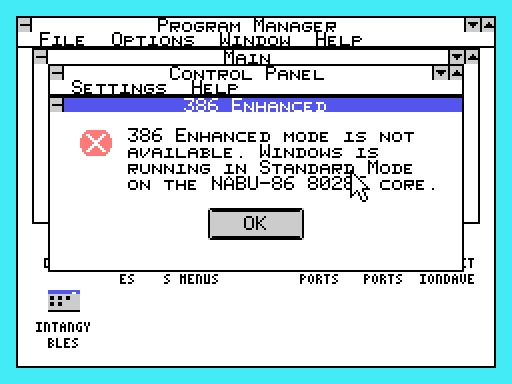
386 Enhanced Mode is not available. It needs an 80386's paging unit and virtual 8086 mode, and NABU-86 has no 386 core. Control Panel's 386 Enhanced icon says so.
The display
The NABU-86 Windows display driver turns the TMS9918A's Graphic Mode 2 into a 256 × 192, 16 colour bitmap: every 8 × 8 cell of the screen gets its own pattern. It's EGA-class colour at a lower resolution. Windows' system font is drawn 6 pixels wide, so menus and title bars fit, and icon titles use a 3 × 5 font so they wrap under their icons the way they should.
The NABU's 16 colours map to the Windows Default colour scheme: dark blue active title bars, grey buttons and a cyan desktop.
Window drawing goes through a cell compositor. Windows are composed back to front, one 8 × 8 cell at a time, and each row of cells is sent to the VDP in a single burst. You'll see windows paint in from the top, much like Windows 3.1 on a 286.
The mouse
There's no mouse port on a NABU, so the Windows mouse driver reads the joystick (or the arrow keys):
- The pointer speeds up the longer you hold a direction.
- FIRE (or SPACE) clicks. Two quick clicks are a double-click.
- Enter opens the selected icon, or presses OK in a dialog box.
- ESC closes the top menu, dialog or window.
Program Manager
Program Manager shows a group for:
- Main: File Manager, Control Panel, Print Manager, Clipboard Viewer, MS-DOS Prompt, Windows Setup, PIF Editor and Read Me.
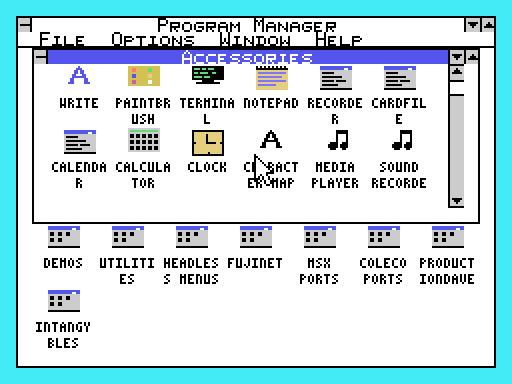
- Accessories: Write, Paintbrush, Terminal, Notepad, Recorder, Cardfile, Calendar, Calculator, Clock, Character Map, Media Player, Sound Recorder, Solitaire and Minesweeper.
- News: every news article from nabu.ca. Each one opens in Notepad.
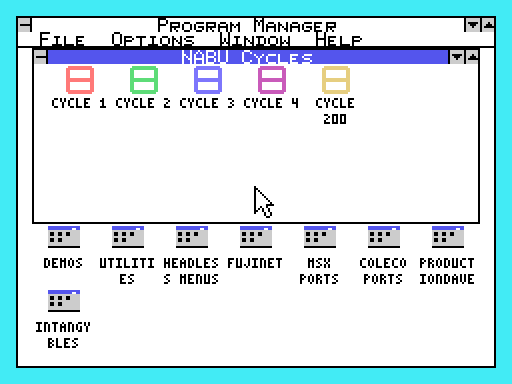
- Every NABU channel category on your Internet Adapter. Its programs appear with their own icons from the Internet Adapter, the same 16 × 16 icons the NABU menu shows. Double-click one and it starts. NABU programs are native Z80 code, so Windows hands the machine over and the NABU restarts straight into the program.
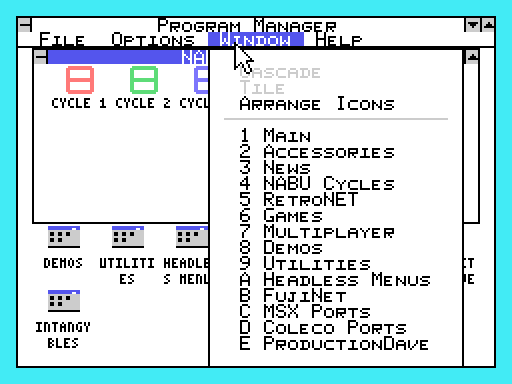
The Window menu lists every group, which is handy when more groups are open than fit on the screen.
What works
| Program | Notes |
|---|---|
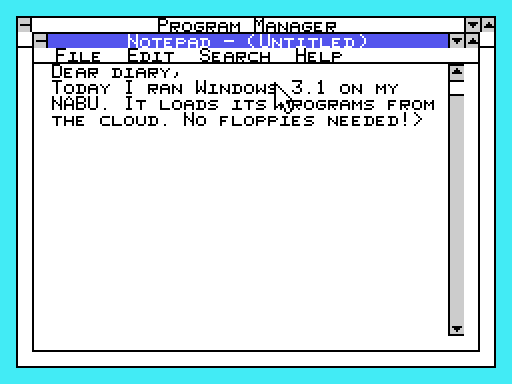
| Notepad | Type into a new document. Edit > Time/Date inserts the time from the Internet Adapter. |
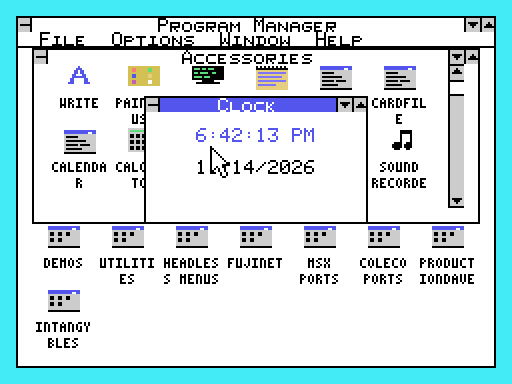
| Clock | The real time and date, from the Internet Adapter. |
| Control Panel | Color, Fonts, Ports, Mouse, Desktop, Keyboard, Printers, International, Date/Time, Sound and 386 Enhanced. |
| Windows Setup | Shows your display (TMS9918A, F18A or PICO9918), keyboard, mouse and network. |
| Read Me | Opens in Notepad. |
| MS-DOS Prompt | Leaves Windows for the NABU-86 C:\> prompt. |
| File > Run... | Type a program's name (or COMMAND) to run it. |
| File > Exit Windows | Ends your Windows session and returns to MS-DOS. |
| Help > About | The memory and system resources free. |
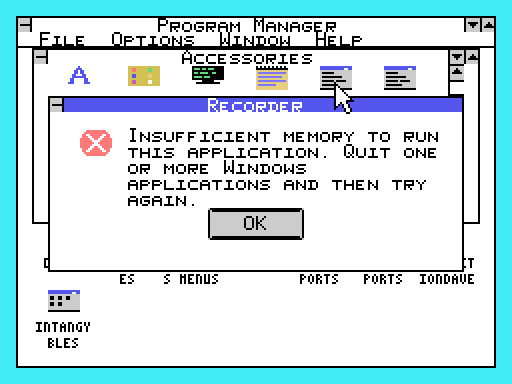
The other accessories need more memory than Standard Mode can give them on a 640K machine. They'll tell you so, just as Windows 3.1 would.
Requirements
- A NABU with an Internet Adapter.
- NABU-86 PC Emulator on the same Internet Adapter, for MS-DOS Prompt and Exit Windows.
- Any video chip works: TMS9918A, F18A or PICO9918.
Tips
- Skipping the boot: press ESC during start-up to skip the memory test and fast boot straight to Windows. Press DEL for CMOS SETUP.
- Headless: set NABU-86 Windows 3.1 as your Internet Adapter's headless program and your NABU boots into Windows every time.
NABU-86 Windows 3.1 · NABU-86 x86 Emulation Layer 1.10 · DJ Sures · https://nabu.ca
Screenshots