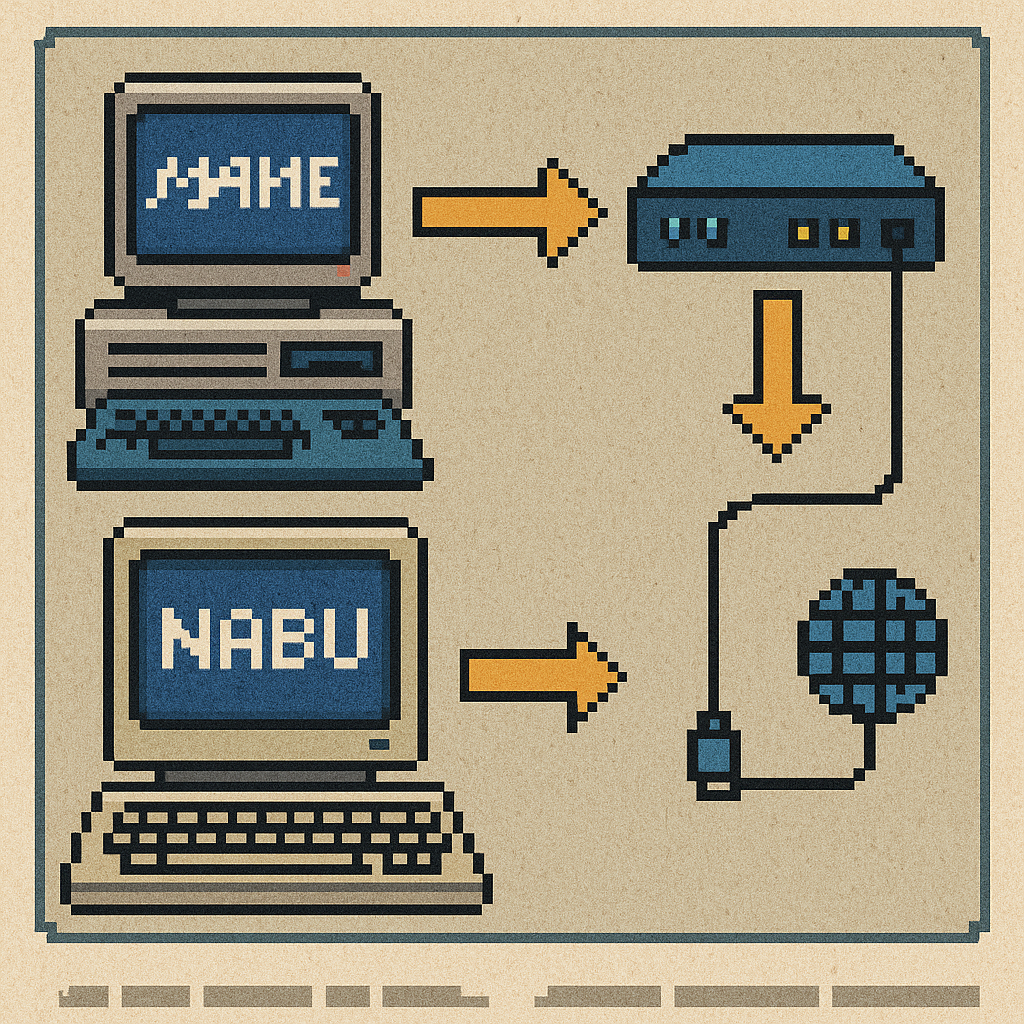
Use MAME To Emulate The NABU PC
Follow these steps to get the NABU PC running in an emulator on your computer without needing the real computer hardware. To emulate a NABU PC, we need two pieces of software that work together to recreate the original 1980s online NABU experience.
In this tutorial, we’ll download, install, and configure both:
- NABU Internet Adapter — This software emulates the original NABU cable data network. In the 1980s, NABU consoles received software over the cable TV infrastructure. The Internet Adapter replaces that system by acting like a virtual cable modem, delivering NABU programs over the internet or from local files.
- MAME (Multiple Arcade Machine Emulator) — MAME includes an emulation of the NABU Personal Computer hardware itself. It reproduces the real NABU’s behavior, including the Z80 CPU, memory, video output, keyboard, and sound, so you can interact with the system just like a physical NABU.
By combining these two components, we get a full software-based NABU environment: MAME runs the computer, and the Internet Adapter supplies the software and data. The following steps will walk you through setting up both.
Get Assistance From The NABU Discord
1. Get “The Internet Adapter”
The first part of the setup is downloading the NABU Internet Adapter, which acts as a replacement for the original cable network. Instead of pulling software from the 1980s broadcast system, the emulator pulls programs from your local computer or the internet.
What it does:
- Emulates the original NABU cable modem/data stream.
- Provides the software that the NABU boots and loads.
- Lets you choose between online servers or local files.
- Works alongside MAME to complete the whole NABU experience.
Download Location: You can download the latest version of the Internet Adapter by clicking the Visit Downloads button below.
NABU Internet Adapter Downloads
Note: There are downloadable packages for all popular operating systems. However, it is recommended to begin with the Windows versions for simplicity unless you are technically proficient with your alternative OS.
Installing: Once you’ve downloaded The NABU Internet Adapter, extract or install it (depending on the release format), but don’t run it yet — we’ll configure it in a later step once MAME is ready. If you are starting with the Windows version of the NABU Internet Adapter, the installer will automatically install and create a link in the Start menu.
2. Get “NABU MAME Emulator”
The second part of the setup is downloading a custom build of MAME (Multiple Arcade Machine Emulator), which includes a complete emulation of the NABU Personal Computer hardware. This gives us a virtual NABU system that we can run on a modern computer.
What it does:
- Emulates the NABU PC’s Z80 CPU, RAM, video hardware, keyboard, and sound.
- Lets you interact with the NABU just like the real machine.
- Works together with the Internet Adapter to load NABU software.
Download Location: You can get the latest NABU MAME releases from GTamp’s NABU website. GTamp is a contributor to the NABU community and provides copies of MAME that have been altered to focus on NABU PC emulation.
MAME NABU PC Emulator Downloads
Note: Just like the NABU Internet Adapter, it is recommended to begin with the Windows version of MAME. GTamp’s website provides a ZIP that contains the Windows 64-bit MAME.
Installing: Once downloaded, install or extract MAME into a folder of your choice. Most people extract MAME into their C:\MAME or even on their desktop in a folder titled MAME. We’ll configure it to talk to the Internet Adapter in the following steps.
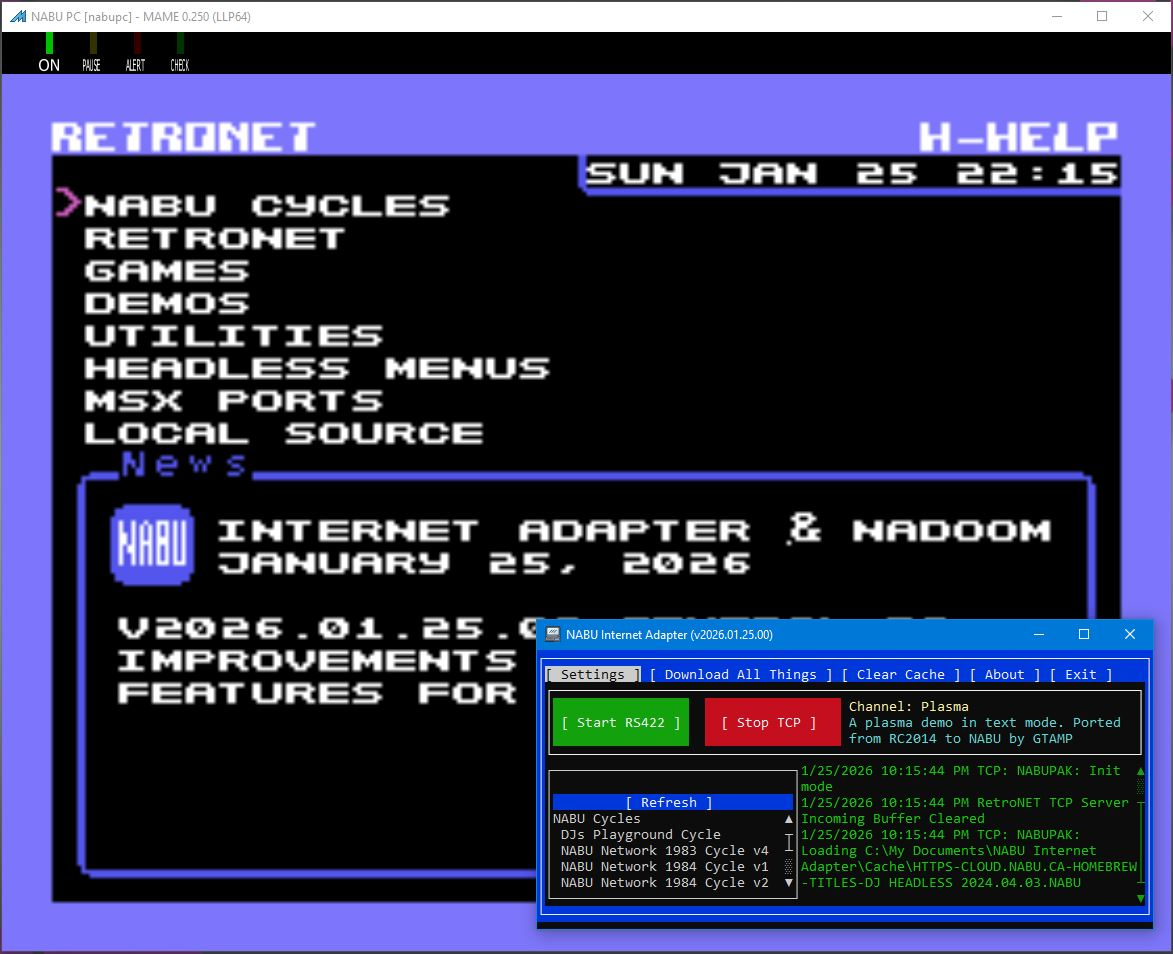
3. Setting up The NABU Internet Adapter
Now that you have both pieces downloaded, the next step is to configure how they communicate. The NABU Internet Adapter includes a built-in TCP server, which MAME will connect to. This network link simulates the original coax cable connection that the physical NABU used in the 1980s.
How it Works:
- The Internet Adapter runs a small TCP server on your computer.
- MAME connects to that server using a special command-line option or config.
- Once connected, data flows from the Internet Adapter into the emulated NABU.
- This simulates the original cable distribution system used by NABU.
Why This Exists: Back in the day, NABU PCs didn’t load software from disk. Everything was transmitted over the cable TV network. By tunneling that data through TCP instead of coax, we recreate that environment using modern tools. With this setup, the emulator behaves just like a real NABU connected to a live cable feed.
What You’ll Do Next:
- Launch the Internet Adapter by double-clicking the shortcut in the Start menu if on Windows. Otherwise, execute the binary on your preferred operating system.
- Simply press the START TCP button.
- That’s it! The NABU Internet Adapter is now sitting, waiting, wishing for a NABU PC connection.
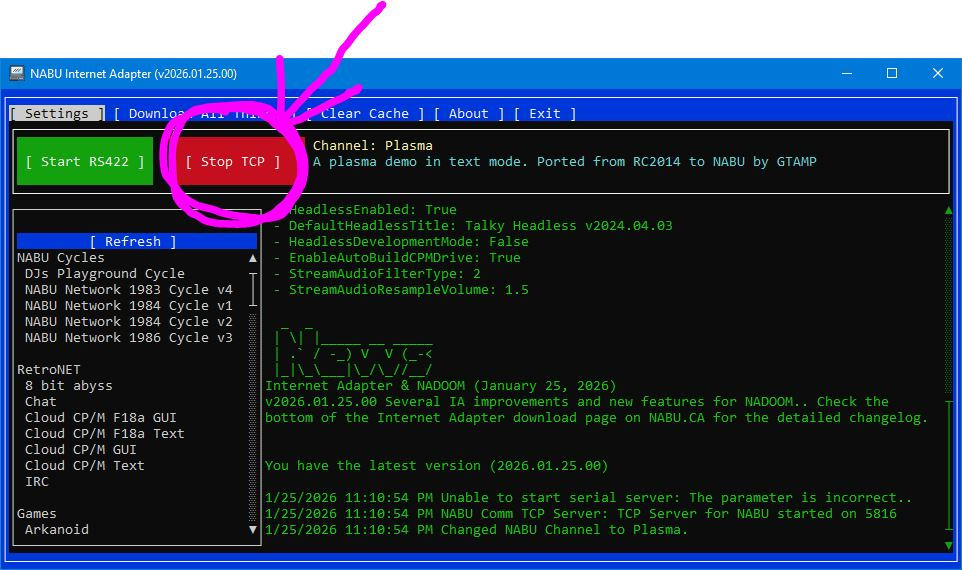
4. Launching NABU MAME Emulator
With the Internet Adapter ready to serve data, the next part is starting up MAME so it can boot the virtual NABU PC and connect to that data stream.
Before launching, make sure that:
- The Internet Adapter is running.
- Its TCP server mode is enabled.
MAME will connect to the Internet Adapter on port 5816 to simulate the original NABU cable feed.
Launching MAME: You can’t just run the MAME.EXE because it expects a few extra parameters to tell it how to behave.
Windows: If you downloaded the Windows mame, simply click on the boot-external-adapter.cmd file in the MAME folder that you extracted from the previous step. That contains the command-line parameters to instruct MAME to connect to the Internet Adapter on the localhost.
Other Operating Systems: The syntax to launch MAME from a command line is
mame nabupc -window -hcca null_modem -bitb socket.127.0.0.1:5816 -kbd:nabu:port1 3btn_joystickOnce MAME is running and connected:
- The NABU boot screen should appear.
- It will wait for data from the Internet Adapter.
- The Internet Adapter will begin streaming the boot software.
- At this point, your virtual NABU PC is receiving software, just as the real hardware did in the 1980s, via the cable network.
5. Operating Your Emulated NABU PC
Once MAME connects to the Internet Adapter and finishes booting, you’ll land in the RetroNET Headless menu. This menu was designed to feel like a cable-style channel navigator — reflecting how the real NABU PC was originally used in the 1980s. Instead of loading software from disks, users “tuned into” programs broadcast over the cable network.
What RetroNET Headless Is: RetroNET Headless is a launcher interface for modern NABU software. From here, you can browse and launch programs (often called “channels”) that run on the NABU PC.
What You Can Do From the RetroNET Menu:
- Run the original NABU Cycle software. Experience the same programs that real NABU users accessed decades ago.
- Read the latest NABU news feed. The community maintains a modern online news stream for active users.
- Play modern homebrew games. Developers are still creating new titles for the NABU, including action, puzzle, and retro-inspired projects.
- Load CP/M. CP/M opens up a full suite of classic computing tools, text editors, compilers, and utilities.
Exiting a NABU Program/Channel: MAME has shortcut keys to emulate physical buttons of the NABU PC. The RESET button is F3, which will exit the current program and return to the RetroNET Headless Menu.
Peripherals:
Joysticks: The NABU uses up to 4 joysticks for multiplayer games. While most games are 2-player, there are a few 4-player games, such as BrickBattle and Game Man Yeah!. Any joysticks connected to the PC will work with the MAME emulator.
Cameras: There are a few applications that will use the PC camera to simulate a live video feed over the cable system to the NABU PC (MAME emulated). If you have a webcam, some applications, such as NABUCAM or NABUCAMCOLOR, will use the webcam.
Configuring MAME: You can customize MAME keyboard shortcuts and various options. Press the TAB button on the keyboard, and the MAME settings menu will display.
Things To Experience With NABU
There are hundreds of homebrew applications developed by the community to use, and new applications are often created. The NABU Discord is a great place to meet other NABU enthusiasts, who are also helpful to give you any assistance needed to get up and running.
Original NABU Network
The original NABU network contains a ton of applications originally published for the NABU PC in the early 1980’s.
8Bit Abyss
An online multiplayer dungeon crawler... in 8bit goodness! Leverage the power of the NABU Network by connecting with others to play together online.
RetroNET Chat
Online chatting application to talk with others in real-time.
Cloud CPM (text mode)
Cloud CPM 2.2 is a text-based operating system for early microcomputers. Because the NABU PC was initially launched without local storage, the idea was to allow PCs to offload their data remotely. While Cloud CPM doesn’t offload the data into the cloud, it uses the Internet Adapter to “simulate” the cloud. This is a very unique CPM that does not require local storage, and therefore offers 40 MB of CPM drives filled with programs!
Cloud CPM (gui mode)
We can’t leave this out of the list, because it has to be experienced to believe! This is an entire GUI for CPM that replaces the CCP (Control Command Processor) prompt. It also allows mapping a drive between your PC and NABU to copy files! Putting files on CPM has never been easier.
Tetris
Of course a homebrew ecosystem wouldn’t be complete without a copy of Tetris!
NADOOM
Can it run DOOM? DOOM on the 8bit 64k NABU? Yup! Featuring digital audio of the original soundtrack and 3d ray-casting.
Bad Apple
NABU wouldn’t be able to join the 8bit retro scene if it didn’t have a version of Bad Apple demo with multichannel music showing off the AY-3-8910.
Musical Slide Show
What would a 8bit retro PC be without Chip Tunes?! This slideshow has hundreds of 80s inspired images and in the background is a random selection from over 20,000 chiptune songs.
Net Muse
Sick of chip tunes? How about streaming internet digital radio — directly from your favorite source. Or, select from one of the default channels available. 80’s mixes, Soma FM Groove Salad, and more....
NABU Cam
Another example that demonstrates the power of the NABU as a 1980’s network PC. This application streams B&W or color from your Internet Adapter to the NABU PC.